Please wait... vIDS can take up to 15 seconds to initialize


- Return to menu
- Report a bug
- Help
- Select template
- Remove this template
- Weather
- PIREP
- A/C Types
- Briefing
- Emergency
- FREQs
- Airspace
- SOP
- LOA
Controller tools
S56 top-down
RECAT / Wake Turbulence
Facility RECAT/wake turbulence resources can be configured in vars/user_modals.php.
Aircraft Types
SLC Weather & Forecast
SLC Terminal Wx
ZLC Weather Radar
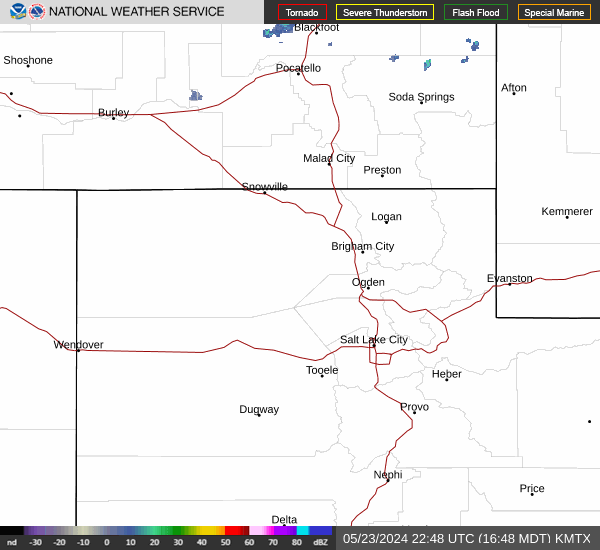
ZLC Weather Satellite

SLC RVR
National Prognostic Chart
Open National Prognostic ChartSLC Tower Frequency List
Clearance Delivery
- Clearance Delivery (CD): 124.750
Ground Control
- Ground Control (GC): 121.900
Local Control
- Local Control East (LC-E): 118.300
- Local Control Central (LC-C): 119.050
- Local Control West (LC-W): 132.650
ATIS
- ATIS: 124.750
S56 / ZLC Frequency List
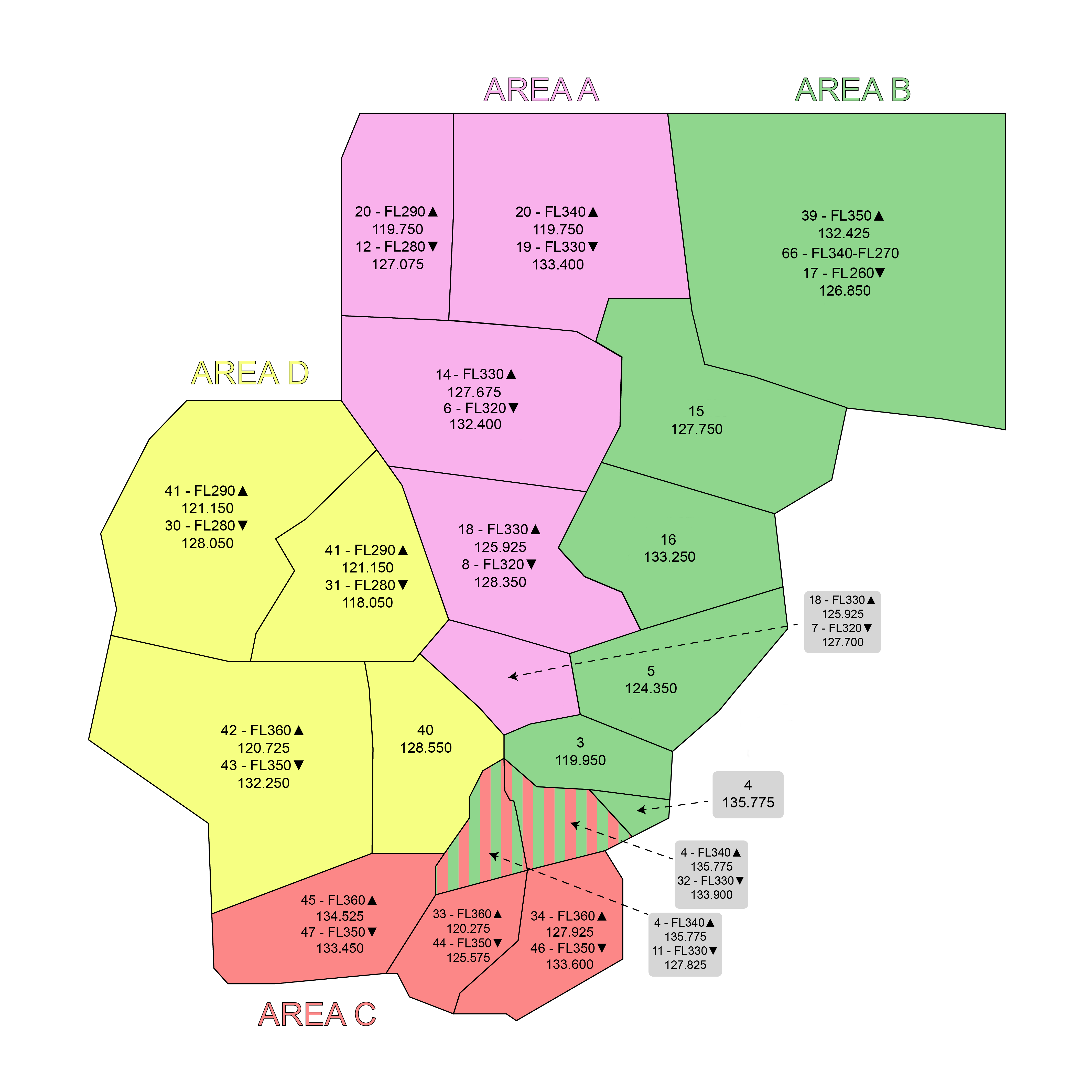
SLC / ZLC Airspace
ZLC Sector Map
RNAV Off The Ground
ROTG resources can be configured in vars/user_modals.php.
Position Relief Briefing
2-2-2. Transfer of Position Responsibility
- All position relief briefings must be conducted in accordance with FAA Order 7110.65 Appendix A.
- All controllers must follow the Position Relief Briefing Checklist located below.
- Controllers must activate the session of the position they are assuming prior to the start of the position relief briefing.
- When traffic conditions warrant, the controller being relieved must monitor and observe the position for a minimum of 2 minutes after the conclusion of the briefing.
| Position Relief Briefing Checklist |
|---|
| Position Information (which positions are being assumed) |
| ATIS Letter / Weather Trends / Flight Conditions |
| Runway Status / Type Approaches / Airspace Configuration |
| Current TMIs / Special Activity / Holding Aircraft |
| Point-Outs / Handoffs / Other Coordination |
| Special Requests or Instructions |
| Active Traffic |
Position Relief Briefing
2-2-2. Transfer of Position Responsibility
- All position relief briefings must be conducted in accordance with FAA Order 7110.65 Appendix A.
- All controllers must follow the Position Relief Briefing Checklist located below.
- Controllers must activate the session of the position they are assuming prior to the start of the position relief briefing.
- When traffic conditions warrant, the controller being relieved must monitor and observe the position for a minimum of 2 minutes after the conclusion of the briefing.
| Position Relief Briefing Checklist |
|---|
| Position Information (which positions are being assumed) |
| ATIS Letter / Weather Trends / Flight Conditions |
| Runway Status / Type Approaches / Airspace Configuration |
| Current TMIs / Special Activity / Holding Aircraft |
| Point-Outs / Handoffs / Other Coordination |
| Special Requests or Instructions |
| Active Traffic |
EMERG CHECK
| M EMERG CHECK - |
|---|
| NATURE OF EMERGENCY |
| PILOT INTENTIONS |
| FUEL REMAINING IN TIME |
| -COORDINATE- |
| PERSONS ON BOARD |
| LIMITATIONS |
| IFR CAPABILITY |
| NAV CAPABILITY |
| VISIBLE LANDMARKS |
CIC User Management
Designate users as CIC to grant them temporary access to the CIC button and modal.
Current CIC Designations
| CID | Expires (UTC) | Designated By | |
|---|---|---|---|
| No active designations | |||
SLC Airfield Config
Add Pilot Weather Report (PIREP)
Note: PIREPs expire 1 hour after they are entered and are auto-purged from this system.
TMU Information
URLs entered in this field will appear as clickable links
S56 CIC Information
*Note: information entered below will only be shown to users viewing the S56 vIDS display (does not propagate to local).
vIDS Help - Local Display
Overview
vIDS is a collaboration and information sharing tool. Data entered on your display will populate on the displays of all other users logged in within 15 seconds. Any user that did not make the change will see a change advisory with the updated item highlighted in red and a button asking the user to acknowledge the change. Although all users logged into the system can make changes to the data in vIDS, only the facility CIC should make changes.
The vIDS system contains multiple display formats, some of which are user-customizable. Critical data is automatically-shared between the different display elements (for example, the S56 display uses live data elements from the SLC local display). Because of this feature, all users benefit from the same data despite viewing different displays.
The local display
Local view is optimized for use by controllers working the SLC tower cab (CIC, LC, GC, CD, GM, FD). The countdown in the upper right corner displays the remainder of the 15-second auto-refresh interval. When this count expires, the system pulls the most current data from sync files and the VATSIM network and refreshes all data on the user's display. Clicking the "refresh" button in your web browser will not speed this process up, as the network limits pulls to 15 seconds in order to manage traffic. Please allow the page to auto-refresh.
The top line of the grid displays the current ATIS code (or -- if no ATIS), the current METAR, direction of traffic flow, and critical departure and arrival information. The next set of grids display controller combinations - the position is in static text in the top row followed by the controller that the position is combined to in a drop-down menu in the second row. The departure positions also contain a box for the display of departure gates underneath the controller combinations. Clicking on these boxes allows entry of assigned departure gates.
Located to the right of the controller position combinations, there are display areas for the current airfield configuration and traffic management information. This data can be entered using menus launched via the AFLD and TMU buttons below. At the bottom of the grid, there are display boxes for pilot weather reports (PIREPs) and controller-in-charge (CIC) messages. Similar to the previous displays, this information can be changed through use of the PIREP and AFLD buttons below.
Menu buttons
At the bottom of the grid, there is a row of buttons that each launch a unique pop-up with additional information or settings.
- HOME: return to landing menu. Also used to submit a bug report.
- WX: button displays local SLC METAR, TAF, and radar.
- FREQS: displays the facility frequency map.
- ARSPC: depiction of facility/position airspace.
- SOP: launches the facility SOP.
- LOA: displays applicable LOAs.
- PIREP: allows a controller to enter a PIREP.
- ACFT: displays the FAA JO7360.1E Aircraft Type Designators.
- RELIEF: displays a position relief checklist.
- AFLD: allows the CIC to set airfield parameters.
- TMU: allows entry of traffic management information.
- EMER: displays an emergency checklist.
- HELP: launches the help information you are reading.
vIDS is currently in development. If you notice a bug, please file a bug report.
vIDS Help - TRACON Display
Overview
vIDS is a collaboration and information sharing tool. Data entered on your display will populate on the displays of all other users logged in within 15 seconds. Any user that did not make the change will see a change advisory with the updated item highlighted in red and a button asking the user to acknowledge the change. Although all users logged into the system can make changes to the data in vIDS, only the facility CIC should make changes.
The vIDS system contains multiple display formats, some of which are user-customizable. Critical data is automatically-shared between the different display elements (for example, the S56 display uses live data elements from the SLC local display). Because of this feature, all users benefit from the same data despite viewing different displays.
The S56 display
S56 view is optimized for use by controllers working the S56 Salt Lake City TRACON. The countdown in the upper right corner displays the remainder of the 15-second auto-refresh interval. When this count expires, the system pulls the most current data from sync files and the VATSIM network and refreshes all data on the user's display. Clicking the "refresh" button in your web browser will not speed this process up, as the network limits pulls to 15 seconds in order to manage traffic. Please allow the page to auto-refresh.
The top line of the grid displays the current ATIS code (or -- if no ATIS), the current METAR, direction of traffic flow, and critical departure and arrival information. The next set of grids display controller combinations - the position is in static text in the top row followed by the controller that the position is combined to in a drop-down menu in the second row. The departure positions also contain a box for the display of departure gates underneath the controller combinations. Clicking on these boxes allows entry of assigned departure gates.
Located to the right of the controller position combinations, there are display areas for the current airfield configuration and traffic management information. This data can be entered using menus launched via the AFLD and TMU buttons below. At the bottom of the grid, there are display boxes for pilot weather reports (PIREPs) and controller-in-charge (CIC) messages. Similar to the previous displays, this information can be changed through use of the PIREP and AFLD buttons below.
Satellites & outer fields
Below the PIREPs and CIC notices, there is a display containing information for the S56 satellite and outer fields. Each section contains normal tower operating hours, the ATIS code, open/closed status, active runways, and the current METAR. If a local controller is staffing one of these fields, all information will be displayed. If no local controller is online and no ATIS is posted, the field will show "closed" and most of the information will appear as double-dashes.
Menu buttons
At the bottom of the grid, there is a row of buttons that each launch a unique pop-up with additional information or settings.
- HOME: return to landing menu. Also used to submit a bug report.
- WX: button displays local SLC METAR, TAF, and radar.
- FREQS: displays the facility frequency map.
- ARSPC: depiction of facility/position airspace.
- SOP: launches the facility SOP.
- LOA: displays applicable LOAs.
- PIREP: allows a controller to enter a PIREP.
- ACFT: displays the FAA JO7360.1E Aircraft Type Designators.
- RELIEF: displays a position relief checklist.
- CIC: allows the CIC to enter notes to controllers.
- TMU: allows entry of traffic management information.
- EMER: displays an emergency checklist.
- HELP: launches the help information you are reading.
vIDS is currently in development. If you notice a bug, please file a bug report.
vIDS Help - Multi-Airfield
Overview
vIDS is a collaboration and information sharing tool. Data entered on your display will populate on the displays of all other users logged in within 15 seconds. Any user that did not make the change will see a change advisory with the updated item highlighted in red and a button asking the user to acknowledge the change. Although all users logged into the system can make changes to the data in vIDS, only the facility CIC should make changes.
The vIDS system contains multiple display formats, some of which are user-customizable. Critical data is automatically-shared between the different display elements (for example, the S56 display uses live data elements from the SLC local display). Because of this feature, all users benefit from the same data despite viewing different displays.
Multi-airfield TRACON/ARTCC display
Multi-airfield view is optimized for use by controllers that require situational awareness of multiple airfields (typically, TRACON and ARTCC). Approximately every 15 seconds, the system pulls the most current data from sync files and the VATSIM network and refreshes all data on the user's display. Clicking the "refresh" button in your web browser will not speed this process up, as the network limits pulls to 15 seconds in order to manage traffic. Please allow the page to auto-refresh.
Templates
Users have the option to select a pre-built template or create a custom template. Templates consist of a list of airfields that the user wants vIDS to display. On most display devices, vIDS will show 6 airfields without the need to scroll. To create a new template list of airfields, click on the TRACON/ARTCC IDS button and use the drop-down to select "Create Template." Enter a name for the template (ex. June FNO). Enter ICAO airfield IDs (ex. KSLC), click Add, and then use the controls to order the airfields in your desired display sequence. Click Save. Your template is now available for your use and any other user.
Airfield grid
After selecting or creating a template, you will see a grid of airfields and associated data. Each airfield is displayed in a similar format for ease of use. The 3-letter FAA ID is displayed vertically on the left side to identify the airfield. Next, the ATIS code is displayed when an ATIS is active for the airfield. If ATIS is offline, double-dashes are displayed. The advertized approach type is displayed in yellow directly above the reported winds and altimeter setting in green. The middle of the display contains the most current METAR in white text. On the far right, the active runway visual range (RVR) is displayed, where available. This display was created to closely replicate what is used in a real TRACON facility.
vIDS is currently in development. If you notice a bug, please file a bug report.
Assign S56 Departure Gates
Configure Runway Departure Split
Use the controls below to configure the runway departure split. Checkboxes turn on/off departure gates. Text boxes can be used to enter SIDs/RNAV fixes.
Launch Multi-Airfield IDS
Multi-Airfield IDS Template Creator
Use this form to create custom multi-airfield IDS displays. Enter ICAO airfield identifiers of the airfields that you wish to display.
Report a bug
vIDS is in development. Help the dev team out by reporting a bug!
Please use as much detail as possible (where did you see it, what happened, what did you expect to happen, recommendations regarding how we can make it better).
vIDS About & Help
Inspired by VATUSA's original IDS from Kyle Porter.
Airfield Configuration:
The form below allows you to override vIDS-displayed data. Entries below will be shared with all other users of vIDS at this facility. This should be used to set airfield configuration when a local controller is not online. Caution: Overriding data below will not update ATIS.
When the box is checked, vIDS is displaying the manually-entered data above to controllers as the active runway and approach type instead of what is being advertized in ATIS. To clear this override, click the "Clear Override" button.
Edit Controller Positions/Combinations
The setting below toggles controller edit mode, allowing you to set controller position combinations. Changes you make will be shared with all users within 15 seconds. Edit mode only shows drop-downs on your screen — other users see the updated combinations in a read-only display.
When checked, positions are displayed as selectable drop-downs so you can set combinations. When unchecked, display mode is active, which provides a clean read-only interface.
Instrument Procedures:
Approaches
Departures
Arrivals
Misc
Please wait... loading
Delete Multi-IDS Template
Are you sure that you want to delete the multi-IDS template: ?
System Administration
Use this control to block users from vIDS by adding a user's CID. When added to this list, users are denied access and given a message to contact the ARTCC staff. Users that are actively logged in and using the system are forced out within 15 seconds of being added to the list. Removing a blocklisted CID from the control instentaneously restores access. Enter a CID or click on a blocklisted CID for more information about the user.
Name
Rating
Home ARTCC
Use this control to allow users access to vIDS by adding a user's CID. When added to this list, users are granted access despite their ARTCC association or VATSIM controller rating. Use this control to temporarily add a controller (ex: grant a member of the ACE team access for an event.) Removing an allowlisted CID from the control instentaneously removes access. Enter a CID or click on a allowlisted CID for more information about the user.
Name
Rating
Home ARTCC
Privacy Policy & Terms and Conditions
Information We Collect
To help enhance the virtual air traffic control experience, we collect information across a series of products and services all to enhance the end user's experience. We collect information in the following ways:
- Information you give us. When you register an account with VATSIM and use that account to sign-in on vIDS, information that is generally considered personal is given to us from you and VATSIM to include, but is not limited to: your name and email address.
- Information we get from you. Some other information is passed by your computer or electronic device, web browser, and VATSIM client. Information can include: your IP address, web browser type and version, device specific information (such as operating system, unique device identifiers and mobile network information). This information may be linked to your account.
- Log Information. Each time you perform an action on vIDS, your action is logged. Information logged can include: type of action, data being sent and received, IP address the request originated from, software used to make the request, identification cookies, and the results of the request.
- Location Information. Your location information may be associated with each request through geolocation against the originating IP address, information given to us by you or given to us by you through VATSIM.
- Storage Location. Data is stored and encrypted on services owned or leased by vIDS within the United States.
Information Usage
To help enhance the virtual air traffic control experience, we collect information across a series of products and services all to enhance the user experience.
We use the information collected to provide, maintain, protect and improve our services.
The information we collect is maintained with confidentiality to the extent possible. The following information is shared with vIDS associated facilities:
- VATSIM CERT Identification Number (CID)
- Your name
- Your VATSIM achievements and ratings
- Your VATSIM associated email address
- ARTCC facility associations, VATSIM region and division associations
vIDS does not make any personal information available to the public, however the following information may be seen by users logged into the system:
- VATSIM CERT Identification Number (CID)
- Your name
- ARTCC staff associations and ARTCC staff email addresses
- ARTCC facility associations, VATSIM region and division associations
- VATSIM achievements and ratings
The following information is collected and may be used to protect our services, up to and including cooperation with legal requests for information from law enforcement agencies:
- The above listed public information,
- All IP addresses used and associated with your account
- Geolocation against aforementioned IP addresses
- Activities performed with vIDS web services
We may store identification tokens and other limited information on your electronic device through web storage or cookie usage.
Who We Share With
The information we collect may be shared, in limited capacities, with the following:
- Virtual Air Traffic Simulation Network (www.vatsim.net)
- VATUSA (www.vatusa.net)
- Other Virtual ARTCC partners
- Law enforcement agencies
For more information on what is shared with whom, please see "Information Usage".
Cookie Usage
We use various technologies to collect and store information when you visit and use a vIDS service. This may include a cookie or other similar technologies to identify your browser or device.
Our cookies are mainly used as a means of tracking virtual users across vIDS services. This allows us to know who is requesting and using our services, provide authentication and authorization checks to restricted areas.
You may choose to disable cookie usage via your browser, but know that doing so will prevent access and use across restricted areas of the website and severely degrade your experience.
Opt Out
Given the nature of our services, it is not possible to opt out of data collection and use our services. But if you desire to opt out and no longer desire to use our services, we will purge all information we have collected upon written request.
The first step is to deactivate and request VATSIM to purge your data. Please head to https://membership.vatsim.net to do so.
After VATSIM has purged your data, please send a written request to your virtual ARTCC's Air Traffic Manager via email. It is a manual process, so please allow up to 30 days for information to be purged. You will receive an email response once the data has been purged.
Note vIDS cannot guarantee that information collected by parties outside of vIDS will be purged in the process.
Disclaimer!
All information on this website is for flight simulation use only and is not to be used for real world navigation or flight. This site is not affiliated with ICAO, the FAA, any actual ARTCC, or any other real world aerospace entity.